
How to Implement a N.I.N.A. Roof Status Safety Monitor at a Remote Observatory (DVO)
By Naztronomy • Posted on 7/15/2026 • Updated on 7/16/2026
Although this video is Death Valley Observatories specific, the scripts can be modified to work at any remote observatory. The steps on installing the ASCOM Safety Monitor driver and configuring that is still relevant for all observatories.
The steps highlighted below can be fo und at the following google doc: https://docs.google.com/document/d/19BITAbEjY_L6WSasDpdEkB5NZAB4cNiRr5cnhWt0dpU/edit?tab=t.0
Step 1: Download ASCOM Generic File SafetyMonitor Driver
Go to https://www.dehilster.info/astronomy/ascom_generic_file_safetymonitor.php and download the .zip as shown in the screenshot below

Step 2: Right click and Extract the contents:

Step 3: Go into the extracted dir and install the driver

Step 4 (DVO Specific): Download the roof status zip file with the powershell and batch scripts: https://drive.google.com/file/d/1n5XWq_V_JHWiG2OEs8XTBL4XqenYMQQ5/view?usp=drive_link

Step 5 (DVO Specific): Go to the location where you saved it (e.g C:\Users\Naz\Documents\roof), right click and extract and go into that directory:

Step 6 (DVO Specific): Right click on the roof_status_set.bat file and click “Run as administrator”

Step 7 (DVO Specific): It runs under the “SYSTEM” user so you should get a screen that says something like this with a few success messages and “Press any key to continue…” (press any key):

Step 8 (DVO Specific): To verify installation, go to Start >> search for “Task Scheduler “ and look for “RoofStatusSync” in in the list and see if it’s running:

Step 9 (DVO Specific): Go back to the directory where the powershell and batch scripts are and you should see a new “roofstatus.txt” file:

Step 10: Go to N.I.N.A. >> Equipment >> Safety Monitor >> Select “Generic File SafetyMonitor” from the dropdown. If you don’t see it, click the refresh button. If you still don’t see it, restart your NINA and/or reinstall the driver.

Step 11: Click the gear icon to go to the settings:

Step 12: Fill out the form as shown below. Click the “folder” icon on the “Files to Monitor” section and find the roofstatus.txt file (e.g. C:\Users\Naz\Documents\roof\DVO_roof_status\roofstatus.txt)
Note: The PowerShell script runs every 30s, the interval monitor below is 30s, and there’s an additional 10s delay for “unsafe” to kick in so there’s potentially a 70s delay between roof status change and NINA seeing the update. Change the statuses below as you prefer.

Statuses:
Closed:
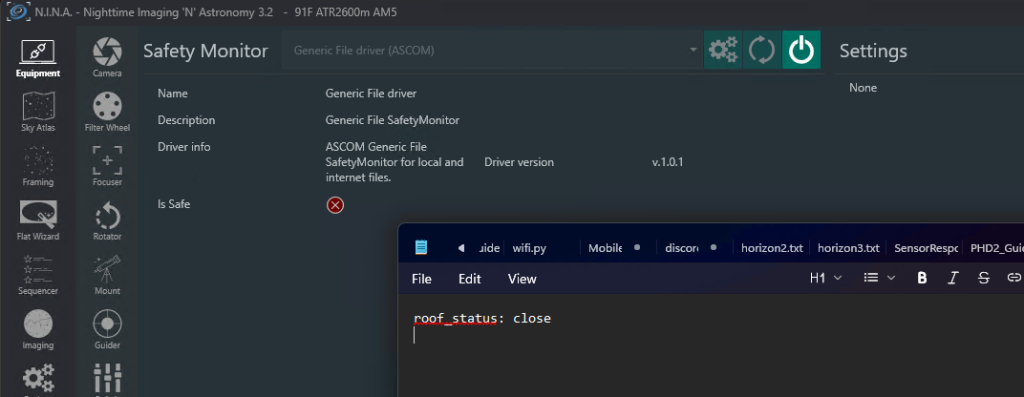
Open:

Questions? Contact Naz.